
I get errors when I create a quote or shipment
Typically, the solution to the problem can be found by carefully reading the error message. There are a few things you can try to resolve a shipment error:
Verify the ship-to address. In the Configure shipment view, click the magnifying glass next to the street address to check the address against the carrier database and fix typos before you buy postage.
If the address can't be verified but you know it's deliverable (some rural or brand-new addresses aren't in the carrier database yet), open Show more options and change the Address verification option from Reject unverifiable addresses to Verify address or No verification, then try again.
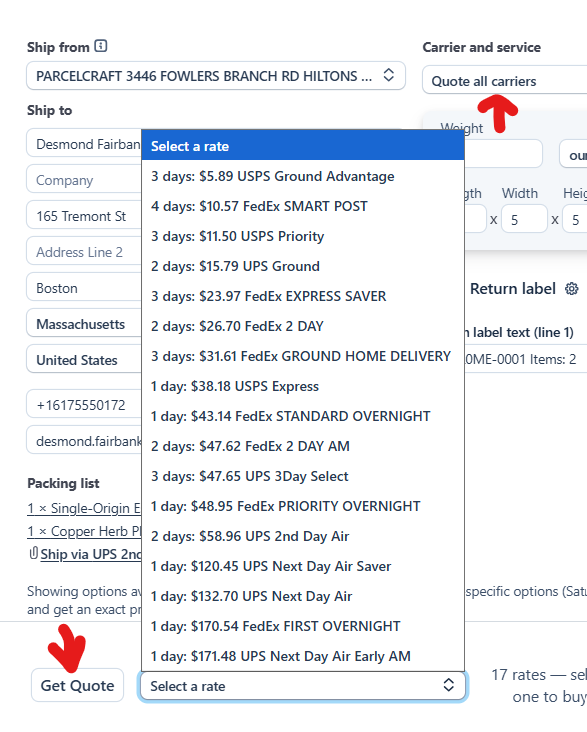
Get a quote from all carriers. The shipment you're creating may be incompatible with the selected carrier or service. Click Get Quote without picking a carrier to compare rates from every connected carrier — if another carrier returns rates, the problem is a carrier or service restriction, not the shipment itself.
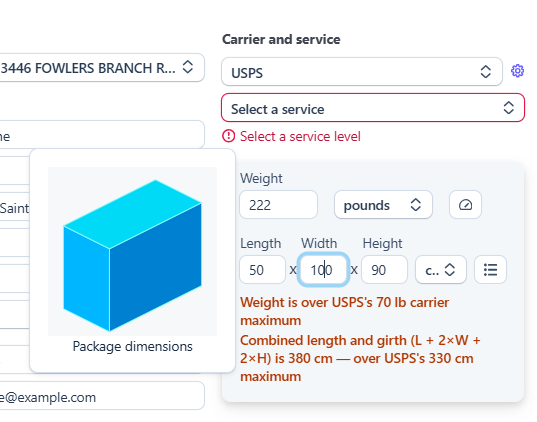
Check the package size and weight messages. Parcelcraft validates the package as you type: red errors mean the selected service or predefined package will refuse it (over its maximum weight, or over the combined length-and-girth limit), while amber warnings flag packages over the carrier's published guidelines. Fix the weight or dimensions, or choose a different service or package. See Size and weight validation for the limits.
For international shipments, open the Review customs tab and confirm every item is declared, the shipment type is set, and you've certified and signed the declaration. Purchase stays blocked until the customs declaration is complete — see International shipments.
Every label is insured automatically
If each label you buy shows Insured for $X and Insurance cost $1.00 without you clicking Add insurance, the Automatic shipping insurance add-on is turned on in your EasyPost account. It insures every label bought through EasyPost, including labels from Parcelcraft.
Turn it off under Shipping add-ons in the EasyPost dashboard — the status reads Not enrolled once it's off. See Automatic insurance for the full steps.